
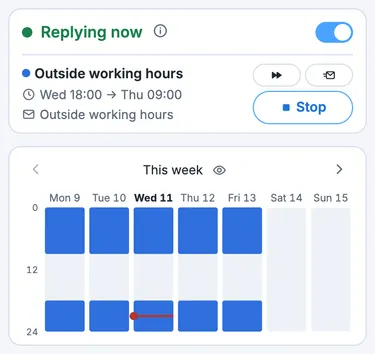
Outside working hours
Mon–Fri · 18:00 → 09:00
Log off on time. Your auto-reply covers evenings, weekends and trips on its own.
Each one sets the days and hours and comes with a reply you can edit.
Mon–Fri · 18:00 → 09:00
Sat–Sun · all day
Tue → Sun, or no end date
Tue 07:00 → Thu 20:00
One day, all day
From now until tomorrow
| What | Gmail on its own | Out of Office Message for Gmail |
|---|---|---|
| Evenings and weekends | You switch it on and off yourself | On and off by itself, every week |
| Start and end | Whole days, midnight to midnight | The hours you set, like 18:00 to 09:00 |
| A vacation or a day off | One reply at a time | Planned ahead, beside your weekly rules |
| A change of plans | New dates in Gmail’s settings | Start now, end early or skip the next window |
| The reply’s text | One text for everything | Each rule has its own, from a template |
| The day you’re back | You retype it every time | Fills in by itself for every window |
| Who gets it | Everyone, your contacts or your organization | The same choice, for each reply |
| Knowing it works | Ask someone to write to you | Send yourself a test |
| With the computer off | Works | Works |
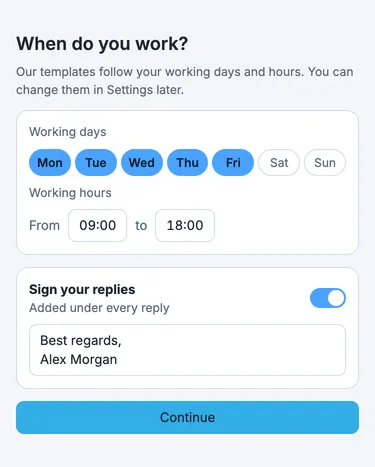
Pick your working days and hours, and how your replies are signed. You do it once, and every rule you add after that uses them.
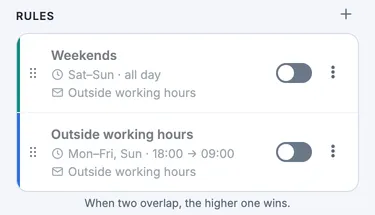
Outside working hours and Weekends are set up for you, each with a reply already written. Turn on the ones you need, or add your own from a template.
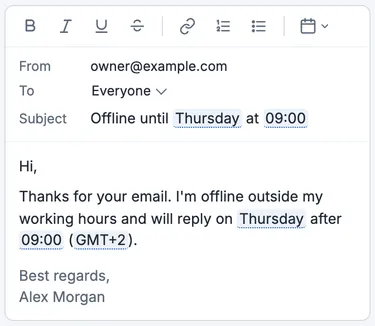
Edit the text and choose who gets it. The day and time you’re back fill in by themselves for every window.
Want to see how people get your auto-reply? We send you an email and forward the auto-reply to you.
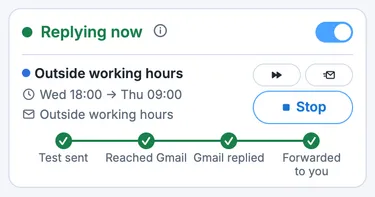
We turn your auto-reply on and off based on your schedule.
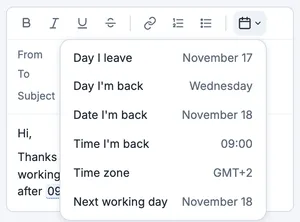
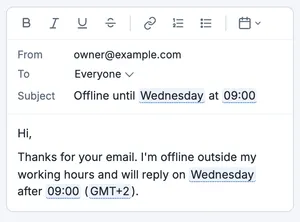
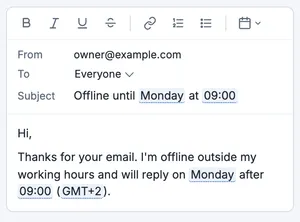
Put the day, date or time you’re back and your time zone into the reply once. Every window fills them in for itself, so Tuesday evening’s reply says you’re back on Wednesday and Friday evening’s says Monday.
Install Out of Office Message for Gmail, open it from the toolbar and connect. Choose the Vacation template, set the dates and hours, then pick or write your message. Your reply stays on until it ends or you turn it off.
Not on its own: the Gmail vacation responder takes one start date and one end date, midnight to midnight. This extension switches that same responder on and off on a weekly schedule, such as weekdays from 18:00 to 09:00 and all weekend.
Yes, if you allow the scheduler when you connect: your vacation responder still follows your schedule. If not, it switches only while Chrome is open.
No. The extension only changes the vacation responder: its message, recipients and timing. Each reply is still an ordinary Gmail vacation reply, sent from your own account.
The Gmail vacation responder replies to each person once per window, and again if they write after 4 days in a longer one. With contacts or organization only, everyone else is skipped. Spam and mailing lists get no reply either.
The scheduler that switches your replies while Chrome is closed runs on Google Apps Script, as you. Your Google Workspace admin has turned Apps Script off for you, so it can’t run. Your replies still switch whenever Chrome is open. To allow it, your admin turns Apps Script on for your account: in the Admin console, Apps, Google Workspace, Drive and Docs, Google Apps Script.
The scheduler that switches your replies while Chrome is closed is a script our company shares with everyone who uses it, so for your organization it is a file from outside. Your Google Workspace admin doesn’t let you open such files, so it can’t run. Your replies still switch whenever Chrome is open. To allow it, your admin lets you receive files from outside the organization, or from fltech.io only: in the Admin console, Apps, Google Workspace, Drive and Docs, Sharing settings, Sharing options.
Waitlist
We’re finishing Google’s review. Leave your email and we’ll write once, the day it’s live.